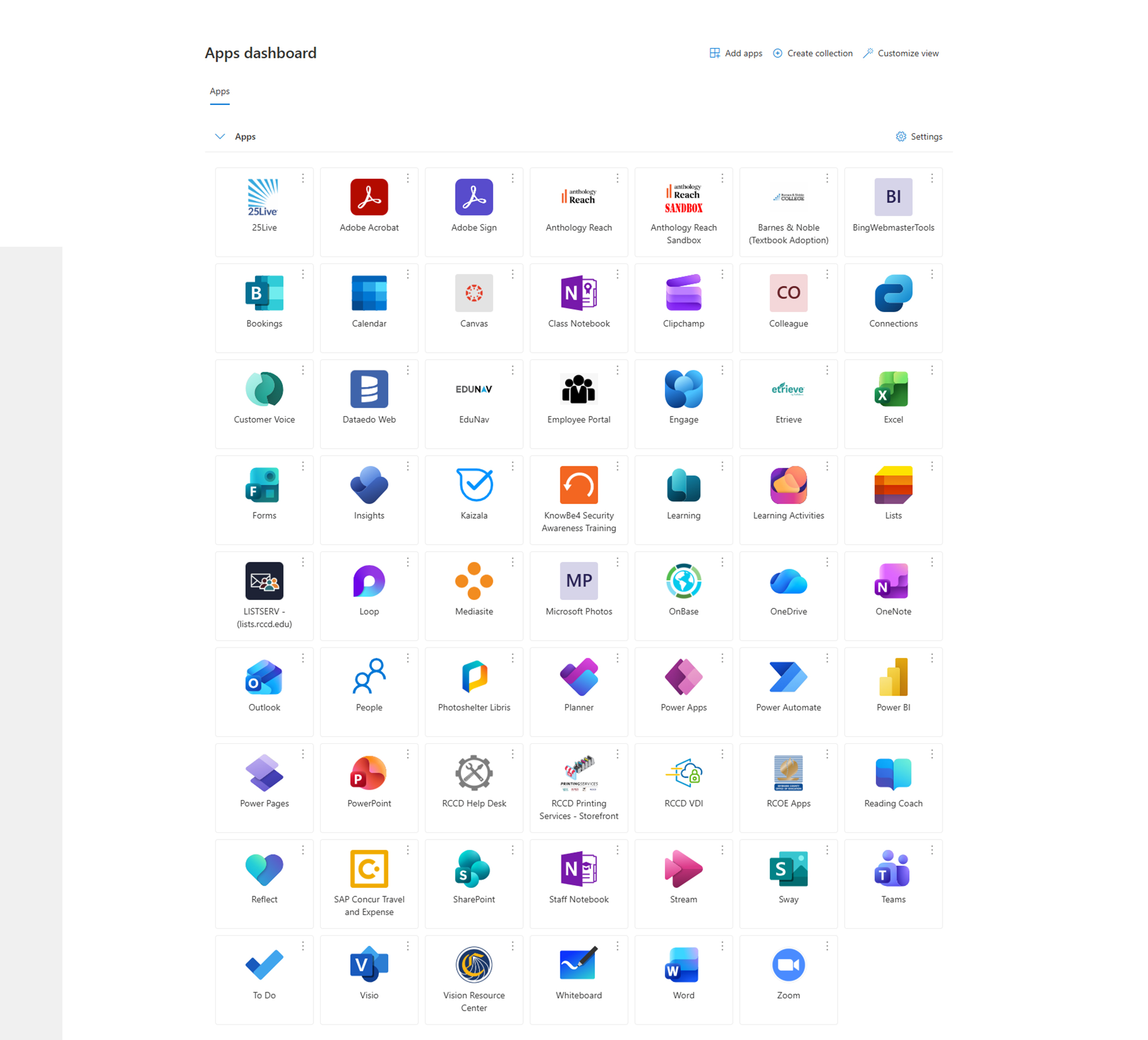
Microsoft OneDrive
Microsoft OneDrive is a cloud service that is included with your Microsoft My Applications (MyApps) Portal and connects you to all your files. It lets you store and protect your files, share
them with others, and get to them from anywhere on all your devices.
How OneDrive Keeps Your Files Safe
OneDrive securely stores your folders in the cloud. That means your files are protected even if something happens to your PC or device.
You can also access anytime via OneDrive on the web or through the OneDrive mobile app. Your MyApps subscription includes Microsoft storage
Secure your important folders
Safeguard your important folders in OneDrive. After setup, files saved in the folders are available anywhere with OneDrive. Your folder choices can be updated anytime in OneDrive Settings.
Where to find OneDrive on your PC
In File Explorer look for the OneDrive folder in the left navigation pane. Right-click any OneDrive file or folder to share it, save it offline, or take other quick actions. You can also access OneDrive online from your MyApps Portal.
To check your OneDrive status, click the cloud icon in the File Explorer address bar or open the OneDrive activity center.
How to Login to OneDrive online
To access OneDrive through the Riverside Community College District, log into the MyApps Portal and log in with your norcocollege.edu or rccd.edu email address and password. Complete any required security or multi-factor authentication steps.
Managing Multi-Factor Authentication (MFA)
- New Setup: Log in using your full student or employee email address (
@student.rccd.eduor@rccd.edu) to register and configure your security prompts.
- New Phone/Number: If you switched devices or lost access to your verification codes, submit a Reset MFA Request via the RCCD Help Desk.
- Single Sign-On Portal: Access all district-linked applications and recovery tools through Microsoft My Applications.
Once logged in, you will be able to use the online version of Microsoft OneDrive.
This free account also includes one terabyte (1 TB) of OneDrive cloud-based storage.
Files download as you need them
To save storage and energy on your PC, items with a blue cloud will only download as you use them. A green check means you can use them even when you're offline.
Right-click files or folders and choose Always keep on this device to ensure they stay downloaded, even when not being used (solid green check). Choosing Free up space won't delete anything; they will download again when you need them.